Networking & Virtualisation
IP configuration, virtual machines and NAT
Overview
This project explores how network traffic travels from an application on a Windows 11 virtual machine, to the open internet. I will use VMware tools and builtin Windows tools for networking to investigate how IP, DNS, gateways, subnets, ARP, routing and NAT all work together. And rather than explaining each concept seperately I will follow the path network traffic takes from my virtual machine, through VMware's virtual network, to my home network, and finally the internet.
From Application to Gateway
When an application tries to connect to a domain such as github.com, many networking systems are involved before any traffic can even leave the local network.
First we have DNS resolve the domain name into an actual IP address, the application then communicates with a service on the machine using a port number; for example TCP port 443, which is commonly used by HTTPS.
Windows will then use the destination IP address (obtained earlier) and the local subnet configuration to determine where the traffic should be sent next. If the destination IP address is outside the local subnet, then Windows will send the traffic to the default gateway, in my instance, VMware's default gateway is 192.168.29.2.
I inspected my virtual machine's network config using:
ipconfig
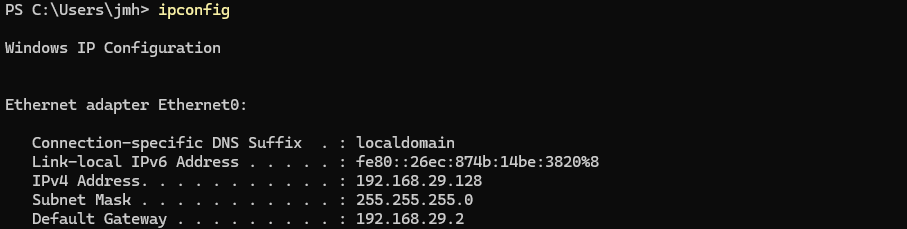
With this information I found out my virtual machine was configured with a private IPv4 address on VMware's virtual network:
IPv4:    192.168.29.128
Prefix:  /24 (from subnet mask)
Gateway: 192.168.29.2
DNS:     192.168.29.2
The /24 prefix is what defines the local subnet and its size. Because internet destinations are outside this subnet, traffic that doesn't have a more specific route will be sent to my default gateway at 192.168.29.2. It's also worth noting, most of this configuration was supplied through DHCP rather than manually configured.
Now before Windows can send traffic to the default gateway over the local network, it first needs the gateway's MAC address. I inspected the local ARP table using:
arp -a
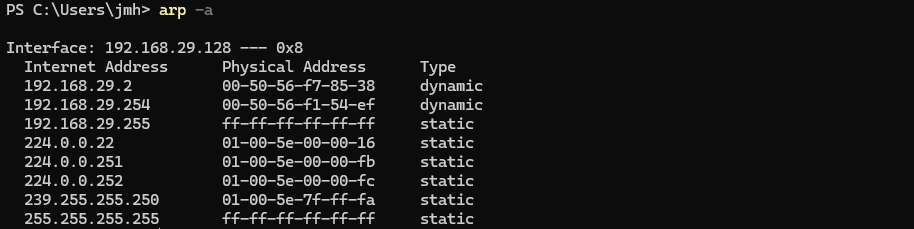
ARP's purpose is to map local IPv4 addresses to MAC addresses, thus allowing Windows to determine the destination MAC address to then place in the Ethernet frame.
Here's a little chart showing the whole process so far:
github.com
V
DNS resolves IP
V
TCP connects to service/port
V
IP/subnet determines whether local or remote
V
Remote traffic uses default gateway
V
ARP finds gateway's MAC address
Obviously for the sake of simplicity, there are a few more steps involved than this, but it's the basic picture.
From Gateway to Internet
After traffic is sent to the default gateway, routing is the next piece that determines where that traffic goes next.
I found my virtual machine's default route via:
Get-NetRoute -DestinationPrefix "0.0.0.0/0"

0.0.0.0/0 is the route used when Windows doesn't have a more specific route for the destination. For this case, this route causes the traffic to be sent to the default gateway.
After finding my default route, I used:
tracert github.com
to see the route my traffic took beyond my virtual machine.
My first two hops showed me:

So the traffic went from my Windows 11 VM (192.168.29.128) to the VMware NAT gateway (192.168.29.2), then to my home router (192.168.1.1), before finally continuing on to the open internet towards github.com.
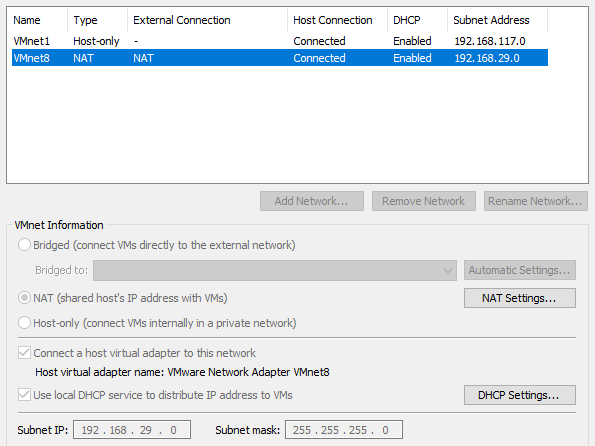
Here VMware uses NAT to allow my virtual machine's private (192.168.29.0/24) network to communicate through my host's real internet connection. This allows my virtual machine to access the internet freely without actually being directly connected to my real home (192.168.1.0/24) network.
What I Learned
This project helped me solidify networking concepts I had previously been aware of more separately into one complete process. I gained a better mental model of DNS, TCP (UDP too) ports, IP addressing, subnetting, gateways, and ARP and how they all work together and rely on one another before your internet traffic even leaves your machine and local network.
Following the process hands-on in my Windows virtual machine using PowerShell and other networking utilities, while also examining my virtual machine's virtual network and NAT, made all these networking connections and networking concepts much clearer.